0 minutes
Written by
Diana Mamani
Published on
December 11, 2025
Published on
December 11, 2025
Modified on
December 18, 2025
Go Back
Lost keys and mixed-up vehicles are not small annoyances for a fleet manager; they’re what delay jobs, strain customer relationships, and inflate costs. Manual sign-out sheets or basic lockboxes simply can’t keep up when you’re running multiple sites, departments, or routes.
Keycafe’s Groups feature gives you a structured way to control access and visibility across your fleet. Used well, it becomes a blueprint for smoother operations and clear accountability across every driver, depot, and vehicle.
At its core, Keycafe Groups lets you take a subset of keys in your account and treat that subset as if it were a single key when you share access.
A few important details:
Instead of managing access key by key, you manage at the group level. That’s where the gains in clarity and control start to show up for a fleet manager.
Most fleets are already organized in some way: by location, route, vehicle type, or business unit. The trouble comes when your key storage doesn’t match that structure.
With Keycafe, you can mirror your operation by creating groups based on:
For trucking and transport companies, the most common workflow is to manage all keys from one dashboard and create groups based on locations and routes. That way, a dispatcher for the east depot is only working with the keys that belong to that site.
Groups become much stronger when combined with role-based access. Keycafe supports granular permissions so you can limit which users or roles can take specific keys, and during which time window.
Paired with Groups, that means you can:
You move from “everyone has the cabinet code” to “each person has the right slice of the fleet.”
Digital key management systems record every pickup and drop-off with timestamps and user identities. Keycafe’s logs show this history in chronological order, so you can see exactly who had a vehicle and when.
When those keys live in clearly defined groups, your reports become more useful:
For audits, damage disputes, or customer complaints, you get a traceable story instead of guesswork.
Start on paper or a whiteboard:
Your goal is not to recreate your full org chart. You simply want to see where key access naturally clusters: by site, by function, or by route.
Using that map, define your first set of Groups such as:
Keep it simple. It’s better to start with a small number of clear Groups than a long list no one understands.
Next, decide who should use each Group and when. Keycafe supports role-based and time-based permissions, so you can limit access to a specific role, shift window, or both.
Examples:
This step turns your policy into something enforced at the SmartBox, not just written in a handbook.
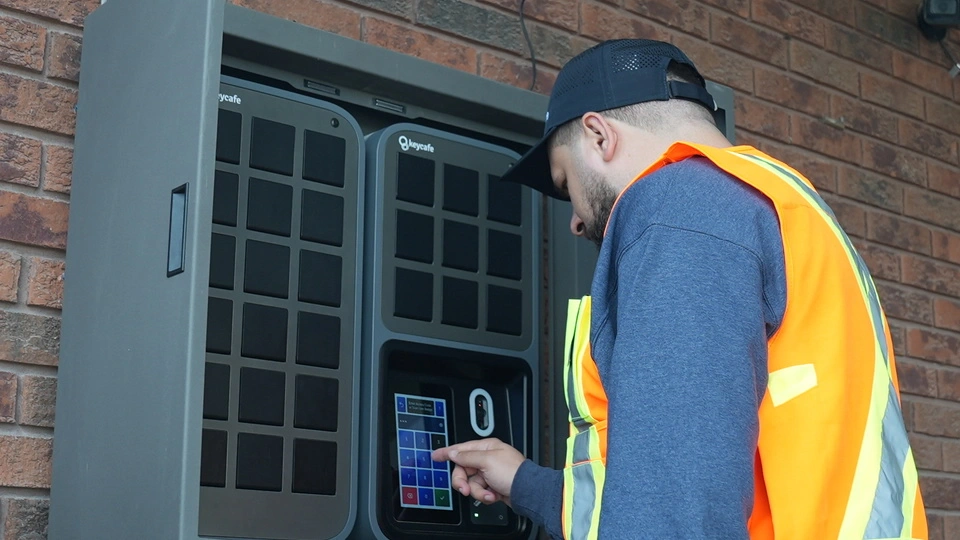
Groups are invisible to many end users; they just experience a smooth pickup and drop-off process. Keycafe's fleet key management system enables a workflow where drivers use a code, fob, or app to retrieve keys, while managers monitor real-time statuses from a dashboard.
For drivers and dispatchers:
When staff see that key pickup “just works” and that vehicles are where they expect them to be, buy-in follows.
Once Groups are live, the real value comes from reviewing the data:
You can then adjust Groups, tighten access, or add after-hours workflows without changing the physical hardware.
Keycafe Groups are not a one-time configuration task. It works best when you treat it as part of your normal fleet management cadence:
Over time, your team stops asking “Where are the keys?” and starts expecting that the right vehicles are always available to the right people.
Ready to see how Keycafe Groups can help you run a more accountable, well-organized fleet? Book a demo to learn how grouping keys by location, route, or department can simplify access control, strengthen your audit trail, and give your team a clear, predictable way to work with vehicles every day.